Creating Dynamic Microsoft Access Forms (Part 2)
Master user-centric workflows, subforms, domain aggregate calculations, and optimal window properties.
Whether constructing a new database application or modernizing a legacy system, your form architecture dictates how effectively users interact with your data. A thoughtful interface transforms an ordinary database into an efficient business application that users enjoy.
Design User-Centric Workflows with Subforms & Aggregates
Traditional database interfaces forced users to jump across multiple screens just to view or modify related data. Modern Access forms should center around the user's task, presenting parent records alongside child data seamlessly.
Use Linked Subforms for Clean Data Entry
Binding a single form to multiple joined tables can cause locked recordsets or insertion errors. Placing child data into an embedded subform linked by master/child fields guarantees clean multi-table editing.
Pull Real-Time Summaries with Domain Aggregates
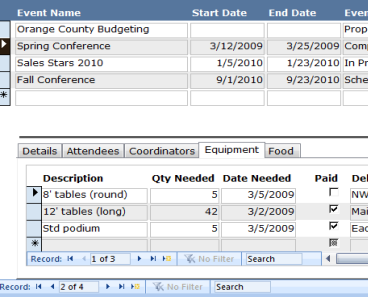
Display metrics from other tables on your main screen without forcing users to open separate queries:
DSum()- Sum column values based on specific filter criteriaDCount()- Count matching rows in another table or queryDAvg()- Calculate averages on the flyDLookup()- Fetch a single value from related tables
 🔍 Tap image to enlarge
Example: Calculating Total Customer Revenue
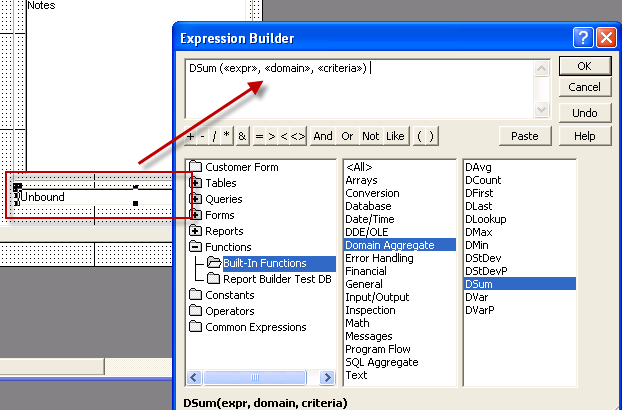
In an unbound textbox, set the Control Source to sum order totals for the active customer record:
=DSum("Revenue", "tblOrders", "[fk_CustomerID] = " & [CustomerID])
 🔍 Click to enlarge
Use Tab Controls to Group and De-Emphasize Secondary Fields
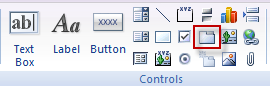
Cluttered forms overwhelm users. Microsoft Access tab controls allow you to organize dozens of fields into logical categories (such as General Info, Billing Details, and Audit History) without expanding the window footprint.
 🔍 Click to enlarge
Perform Real-Time Inline Calculations
Just like spreadsheet formulas, Access textboxes can compute line-item figures instantly as users enter values:
=[Quantity] * [UnitPrice] * (1 - [DiscountRate])
These unbound textboxes update dynamically when related fields change, giving users immediate mathematical feedback without requiring form saves or background VBA triggers.
Configure Optimal Form Window Behaviors
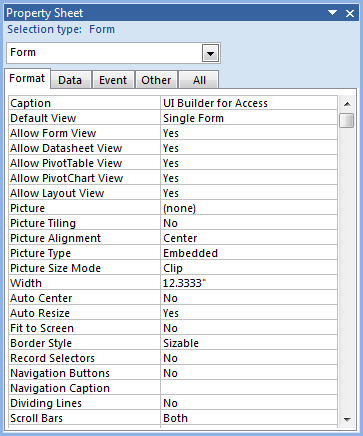
Default Access form properties are often tuned for raw database browsing rather than polished production applications. Fine-tune these properties in the Form Property Sheet:
- Pop Up (Other Tab)
- Set to Yes to keep modal dialogs floating above main workspace windows.
- Auto Center (Format Tab)
- Set to Yes so forms open centered on the user's monitor.
- Record Selectors (Format Tab)
- Set to No on single-record detail forms to eliminate the gray vertical bar on the left.
- Navigation Buttons (Format Tab)
- Set to No when replacing default bottom controls with custom action buttons.
- Cycle (Other Tab)
- Change from All Records to Current Record to prevent the Tab key from inadvertently moving the user onto a new, empty record.
 🔍 Tap image to enlarge
Pair Continuous Summary Forms with Single Detail Forms
Match form views to the user's intent. Continuous forms excel at fast multi-record browsing, whereas single forms provide room for comprehensive record editing.
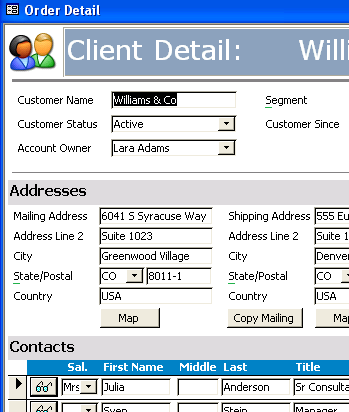
Single Detail Form: Best for comprehensive field editing and tabbed sections.
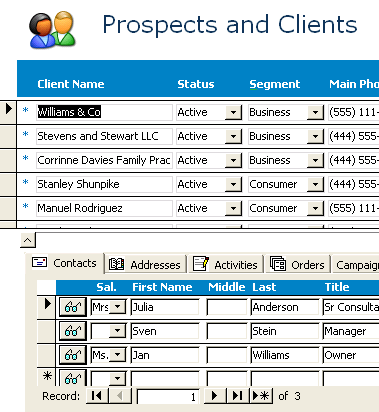
Continuous Summary Form: Best for rapid scanning, searching, and filtering lists.
Load Contextual Detail Popups from Summary Rows
Connect summary rows directly to specific record details. Use the Command Button Wizard to generate an "Open Form" action configured to find matching data:
- Add a button next to each continuous row or in the header.
- Select Form Operations → Open Form.
- Choose Open the form and find specific data to display.
- Match the unique key field (such as
CustomerIDorOrderID).
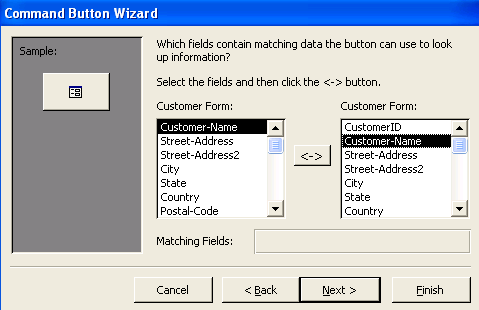 🔍 Tap image to enlarge
Build Better Access Menus & Forms in Minutes
Skip manual VBA scripting. UI Builder for Microsoft Access delivers modern navigation menus, form-level security, and 26+ built-in commands instantly.
Explore UI Builder for Access →