- Home
- Access Resources
- Access 2007 Trust Center
Access 2007+ Security
Adding Databases to Access 2007 (and higher) Trusted Locations
This tutorial provides you with step-by-step instructions on how to add a database to your Microsoft Office Trusted Locations list. The Access Trusted Locations feature provides an added level of security to prevent macros and Visual Basic from running without your approval, but can also prevent a database from operating correctly.
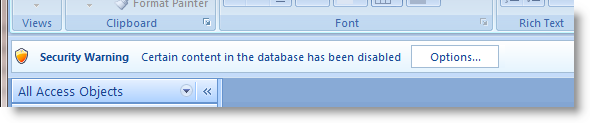
What follows provides you with instructions to add a directory to your Access Trusted Locations. Doing so will mean any Access database in the folder will run unrestricted when opened. All OpenGate products are thoroughly tested and free of potential security risks. We recommend you only include databases in a Trusted Location that are from sources you trust.
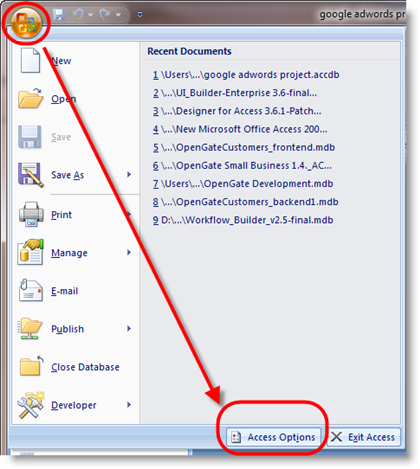
Step 1: Open the Office menu in Access and select "Access Options"
Step 2: Select "Trust Center"
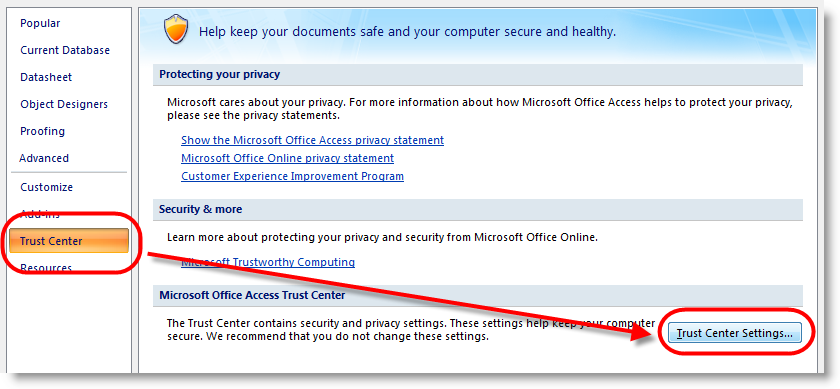
Step 3: Select "Trust Settings" as shown above.
Step 4: Select "Trusted Locations"
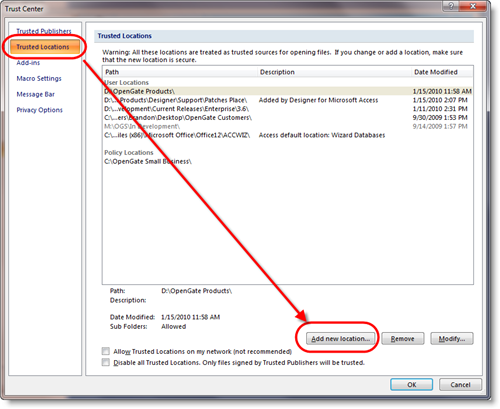
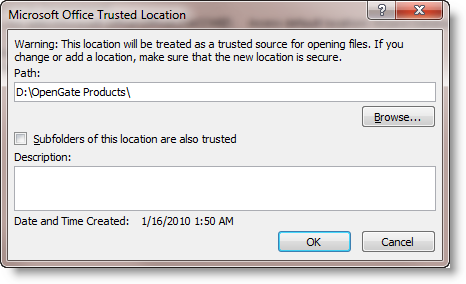
Step 5: Browse to the directory you want to trust. You may also choose to trust all subdirectories by checking the "Subfolders of this location are also trusted" box.
Note: If the directory is on a network drive, be sure to check the "Allow Trusted Locations on my network" box. Microsoft does not recommend this option (as seen in the Trust Center dialog) since you may not have control of who has the ability to open and manipulate your database's VB code. Provided you have appropriate network folder security configured to only trusted individuals, you should be fine to check the box.
Finished! Your changes will take effect when you close and re-open your database.